Baby I'm A Star
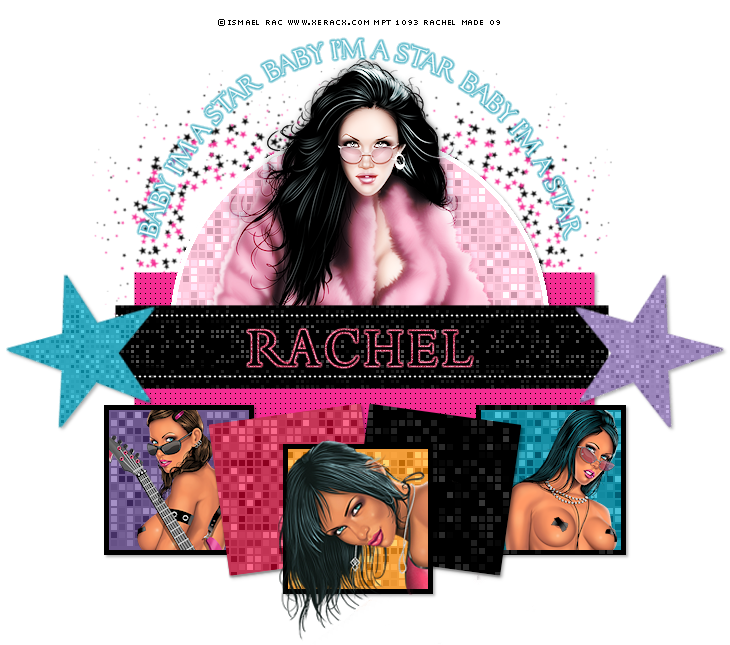
Tutorial written in Psp9.
Tubes of choice all by the same artist - I am using the stunning art of Mr Ismael Rac
You must purchase a license to use his art from MPT
Supplies.
Template#63 From My Blog
Filter - Xero - Fritillary
Font - Riven - Here
Ok let's get started.
Open up my Template, Delete the Info layer, Duplicate & close down the original.
Add a new Raster layer to the bottom /Image/ canvas size 750x750.
Click on the Grey Rectangle layer.
Selections/Select All/Float/De Float/Modify/Expand1.
Add a new layer, Fill with a colour from your tube/s.
Select none, Add a drop shadow Delete the Grey Rectangle layer.
I also added Weave to the rectangle.
Effects/Texture Effects/Weave:
Gap Size-1/Width-4/Opacity-3/Gap colour - Or One of your choice, Ok.
Click on the half Circle layer & use the same settings as above Only change the colour of your fill.
Keep the Half Circle selected/Selections/Modify/Contract-5. Keep selected.
Effects/Plugins/Xero/Fritillary:
Granularity:5/Aggression:30/Tessalation:100/Variation:42 or just play around with the settings!
De select. On the original half circle layer, Selections/Select All/Selections Float/ De Float.
Add a new Raster layer & fill with white or a colour of your choice.
Select None, X out all layers except the half circle layer (Original) & the one you just created &
You can merge these 2 layers together now. Un X all layers.
On the Grey Strip layer, Just change the colour by going to :
Adjust/Brightness/Contrast:
Brightness:-255/Contrast:100.
While still on the layer Go to Xero/Fritillary & use the same settings as above.
Next click on the Left Black Square . Selections/Select All/Float/ De Float/ Modify/Contract 5.
Add a new layer & fill with a colour from your tube/s,
Keep selected add the Xero Fritillary same settings as above & your tube/ Selections /Invert /Delete/
Select none. Do the same for the next 4 Squares. Or you can do the same as I did & just fill with colours & add the Fritillary. Add drop shadows to all your squares.
On both the stars layers do the same as above only change the colours & add Fritillary & Drop shadows.
On the wording layer I just changed it to white using the Adjust/Brightness/Contrast.
And also made it higher so my tube would fit underneath it.
Now click back on the Half Circle fritillary layer, Select/Select all/Selections float/De float.
Now add your main tube & erase the excess of the tube, Select none.
Now add your text, I selected my text added a new layer & filled with a colour & added some noise.
Add the correct © Info and anything else you would like to add to the tag.
Resize Merge Visible & save as a Jpeg or Png!
I hope you enjoyed my tutorial as much as I did writing it !!!
..Hugs Rachel..
Layout and Tutorial ©Rachel written on March 31st 2009.
Any similarities to this tutorial are purely coincidental & unintentional.
Registered with Tutorial Writers Inc.
